

As promised in Part 1 of this series on the new EPSO TAO platform (Reasoning Skills navigation and tools), here’s Part 2, focused on the Written Test/EUFTE experience.
We asked Susanne Lindahl, one of EU Training’s Written Test experts, to put the platform through its paces in the sample EPSO environment and focus on what actually matters. The result is simple: TAO gives you a clean, Word-like editor with more formatting options than you’ll ever need. The real challenge is still the same one it has always been: writing a clear, structured answer under tight time pressure, without a spell-check safety net. This guide shows what’s worth using, what to ignore, and how to practise so the platform doesn’t steal time you need for thinking and writing.
Please note: The screenshot used in this article was sourced from the TAO testing platform via the sample EPSO test which is publicly available.
Update: in the first testing event, some candidates reported different experiences on the platform (for example, some said spell check was enabled)
New test platform for the EPSO Written Test
The good news: the new platform is straightforward for the written Test (EUFTE). It’s not flashy, but it’s easy to work in - which is exactly what you want when you’re writing against the clock.
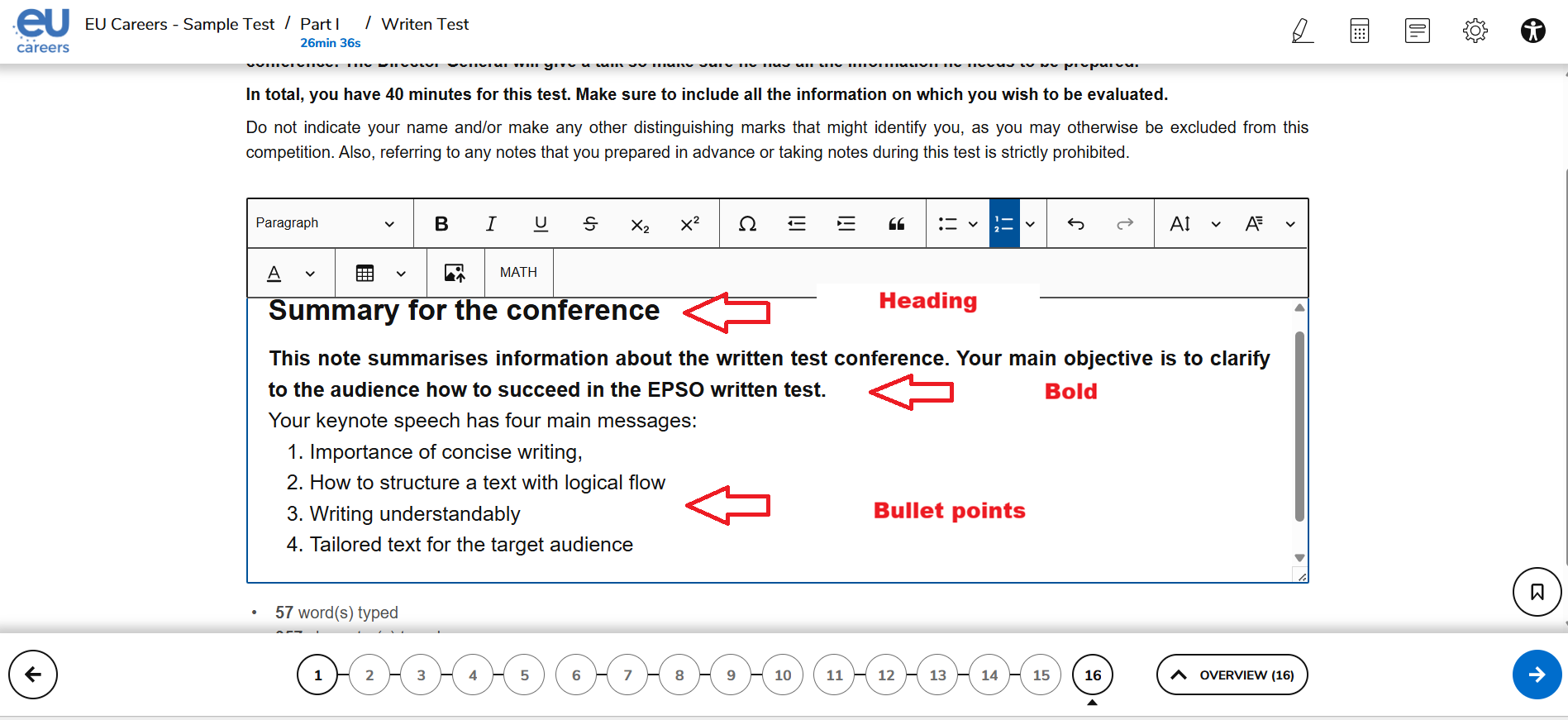
What the editor looks like
Think of the text editor as a simplified version of Microsoft Word. You can format your text using:
- Headings (styles)
- Bold, italics, underline
- Bullet points and numbered lists
- Indents
It also supports special characters, which is more useful than it sounds if you need:
- The € symbol
- Names with characters like č or ø
The platform also includes formatting options that exist… but will rarely help you:
- Font colour
- Tables
- Images
- Maths
Some very detailed formatting (like subscript/superscript) may appear available, but in most competitions it’s not where your points are won.
No spell check: your text needs to stand on its own
There is no automatic spell check. That’s not a bug, it’s the point.
A quick reminder on what actually matters: typos and grammar mistakes are not normally scored as a separate “spelling” category, but they can still hurt you if they reduce clarity. If your writing becomes hard to follow, you risk falling down on understandability.
Pro tip: practise like it’s the real thing
A simple training drill:
- Set a timer for 40 minutes
- Draft a short text with spell check disabled
The topic doesn’t matter. You can write about: challenges for the Common Agricultural Policy, or why dogs are better than cats (pick anything. The goal is writing under pressure.) Then run spell check afterwards to see:
- how clean your drafting is
- what you need to fix before exam day
The biggest platform improvement
...is editing that actually works. This is where TAO is genuinely more user-friendly: it supports basic writing actions that save time and frustration. Here are the time-savers you'll actually use:
- Undo / redo buttons (surprisingly important)
- Cut, copy, paste for moving sentences and paragraphs
- Keyboard shortcuts such as: Ctrl+V (paste) and Ctrl+B (bold)
That last part might sound obvious, but previous platforms have not always behaved like normal editors, and that’s exactly why this matters.
Word and character count: useful signal, not the main challenge
In the sample test session, the task doesn’t show a character limit, but the editor counts both words and characters and displays the totals. That may hint that character limits could exist in future assignments. Still, keep your priorities straight:
- The real limit is usually time
- In 40–45 minutes, you cannot write something long and excellent
- Aim for quality over quantity
- one strong page beats two messy ones
- but you still need enough text to demonstrate your communication skills
Formatting: helpful when it clarifies, dangerous when it distracts
TAO gives you lots of formatting options. The trap is thinking you should use them. They are not testing your ability to format. Nobody gets extra points for colourful text.
A practical example: the platform might let you write “m²” nicely. That doesn’t automatically make it a smart choice. For clarity, it’s often better to write “square metres” instead. Here are two simple rules to follow:
- Use formatting only when it helps you:
- structure your answer clearly
- guide the reader
- improve understandability
- Skip formatting when it:
- costs time
- adds visual noise
- tempts you into polishing instead of writing
Takeaway
TAO’s written-test editor is user-friendly, supports proper text editing (cut/paste + undo/redo), and includes a wide range of formatting tools, most of which candidates will never need. The smart approach is to use only what supports clarity, then spend the rest of your time doing what the written test actually rewards: clear thinking, clean structure, and readable writing under pressure.