

This is a two-part series: Part 1 covers the Reasoning Skills Tests (navigation and tools), and Part 2 will cover the Written Test/EUFTE experience.
PLEASE NOTE: All the images used in this article were sourced from the TAO testing platform via the sample EPSO test which is publicly available.
Now that the sample EPSO test is available on the new TAO by Open Assessment Technologies (OAT) platform, we asked two of our experts, Andras Korizs (EPSO reasoning skills coach) and Susanne Lindahl (EPSO written test coach), to take it for a proper test drive.
Here’s the headline for reasoning skills: expect three separate timed tests, submitted one by one, plus a cleaner question navigation bar and a toolbox of on-screen features that can either help you fly or make time crawl if you’re not careful. This guide is the best place to start before you practise, so your first session on the platform (and the real thing) goes smoothly.
EPSO TAO reasoning tests: how the test is structured and how to navigate it
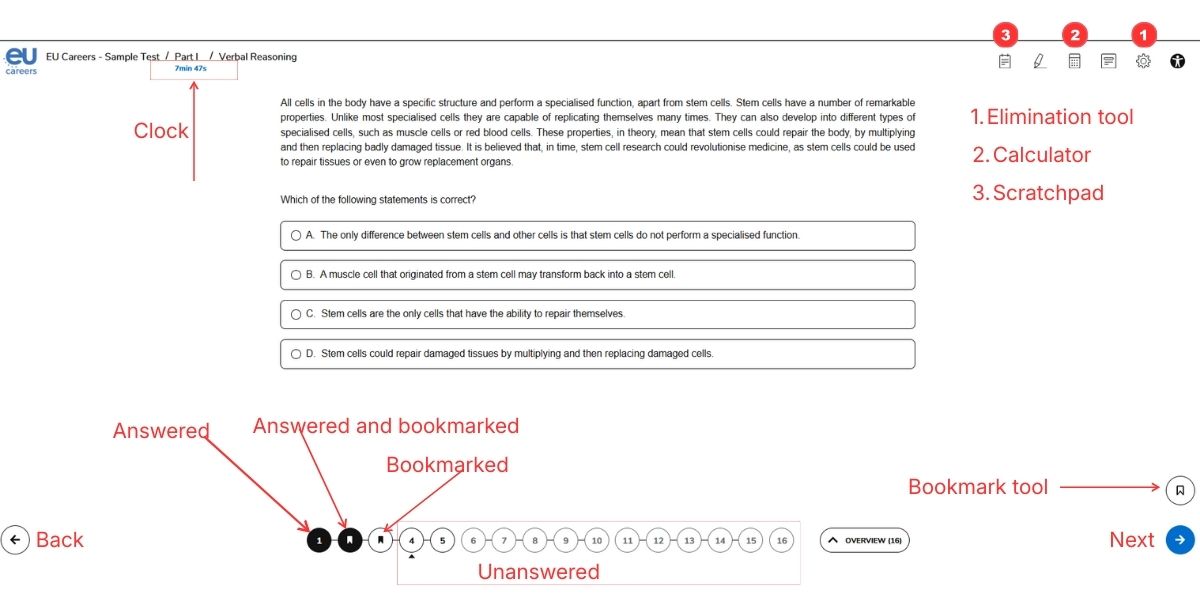
The sample test on the TAO portal is useful for getting a feel for the interface, but don’t assume the real EPSO reasoning exam will run as one long, continuous test. In practice, you should expect three separate timed reasoning tests, and you’ll need to submit each one before you can move on to the next. (Click the image below for larger picture)
Question navigation bar: your control centre
TAO’s navigation is cleaner and more user-friendly than you might expect.
The Question Navigation Bar gives you a quick snapshot of where you stand:
- Answered questions show as a filled/dark circle
- Bookmarked questions show a clear bookmark icon
- Jump anywhere by clicking directly on any question number
Bookmarking: use it like a pro
The bookmark tag is genuinely useful when you’ve done most of the thinking already, but you’re not 100% sure. Best use case:
- You’ve narrowed it down to two options
- You pick the best one for now
- You bookmark it to revisit quickly if time allows
Keep an eye on the clock (it’s smaller than it should be)
The countdown timer is easy to miss at a glance, which is mildly irritating in a timed exam. Time management is half the battle in reasoning tests, so keep the clock in your peripheral vision.
Next, the tools — ranked from most useful to least worth your time:
Most useful tools for EPSO tests on the TAO platform
ANSWER ELIMINATION: WHERE TO FIND IT AND WHY IT MATTERS
Answer elimination is the single most useful tool on the TAO platform for reasoning tests - and it should be the first thing you switch on when you start a mock exam or the real sitting.
Why it matters
- Helps you cut down options fast
- Keeps your thinking tidy on tricky questions
- Reduces “Wait… was option C already wrong?” moments
Where it’s hiding (and why this is annoying)
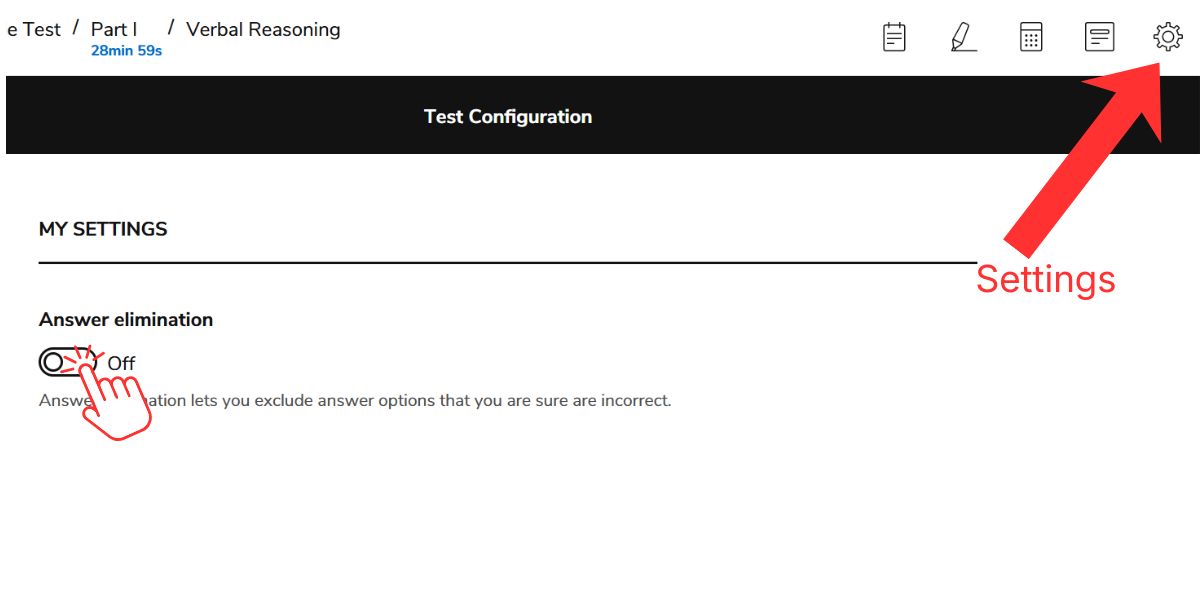
It’s not sitting there proudly on the main screen. It’s tucked behind the Settings button, which is… tricky-tricky. How to access it:
- Click on Settings icon
- Turn on Answer elimination
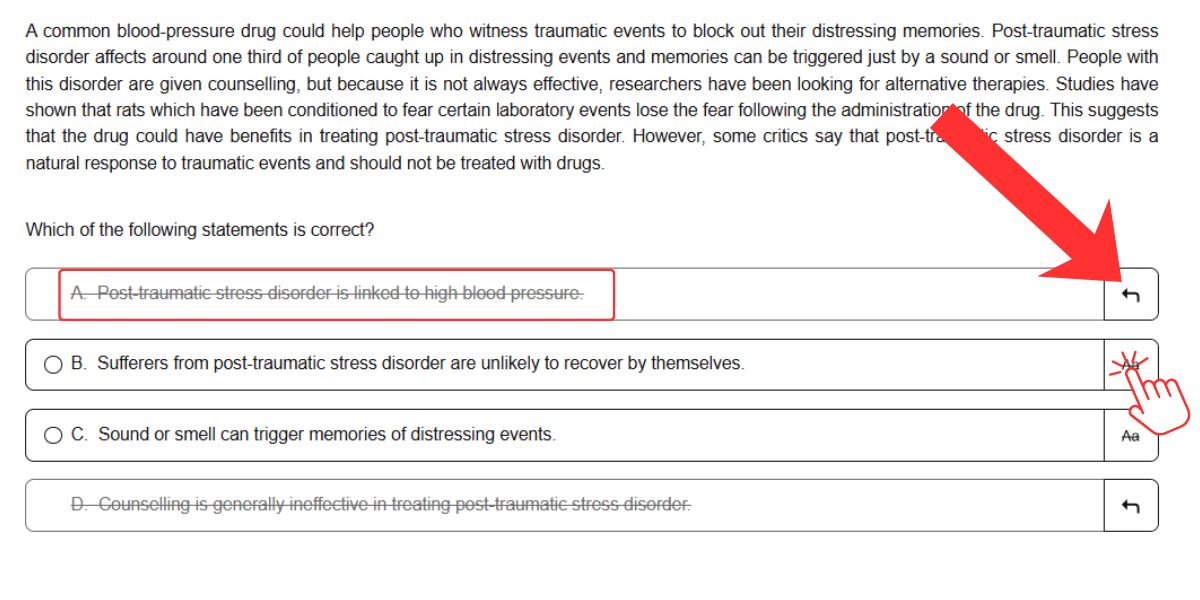
Once enabled:
- A small clickable box appears next to each answer option
- You can mark options you’ve ruled out
- The remaining options stand out more clearly
How to use it well
- Eliminate ruthlessly when you’re confident
- Don’t overthink the “maybe” options - the tool is for clarity, not therapy
- Make it part of your routine: turn it on before Question 1
EPSO TAO CALCULATOR: HOW IT WORKS AND HOW TO USE IT FAST
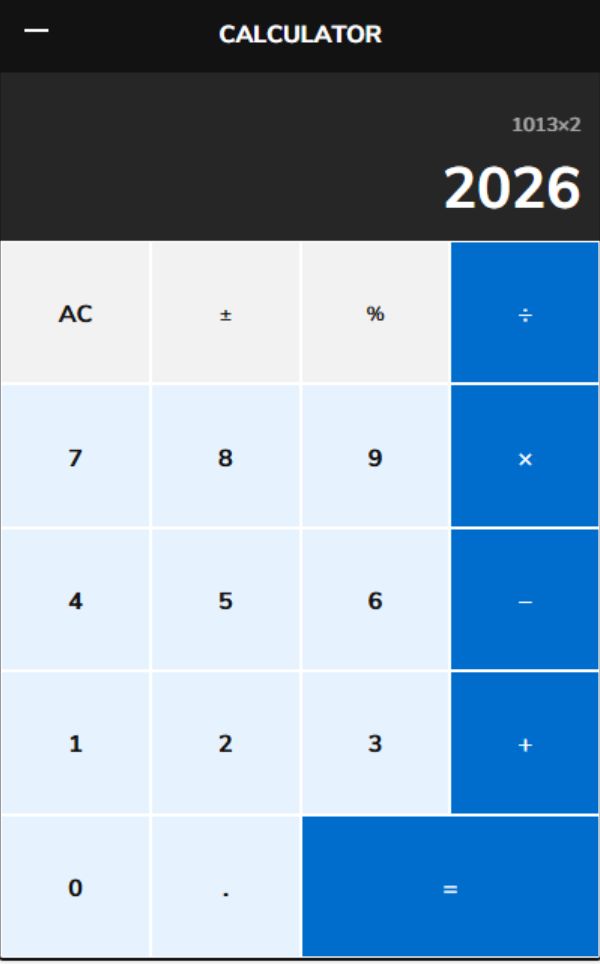 In the reasoning tests, you get a basic on-screen calculator for numerical work.
With remote proctoring, physical calculators and paper are off the table (literally), so getting comfortable with this tool isn’t optional - it’s mandatory, and should be part of your speed strategy.
First, a drawback:
The default font in the display panel is small, even at maximum size, which may slow you down when you have to squint to see if you input the numbers correctly
- There didn’t appear to be any way to make this bigger
- Your screen size, OS, and monitor settings may affect the size
- The output number, however, is much larger and easier to see
How to open and position it
- Click the calculator icon to launch it
- Drag it around so it doesn’t cover the question or data
- Resize the window if you need more room
- Enter numbers directly with your keyboard (much faster than clicking)
What the calculator can do
It’s designed to stay simple and do the job:
- + addition
- − subtraction
- × multiplication
- ÷ division
- +/− toggle positive/negative (handy for percentage change)
- % percentage calculations (useful for NR speed)
How to use it without losing time
- Default to keyboard input
- Practise percentage workflows until they’re automatic
- Get used to doing calculations with a small display so exam day isn’t a surprise
Recommendation: Use it, master it, practise with it. Use a similar online calculator so it feels familiar under pressure. Check out our reasoning skills practice tests here, where you can practice with a similar calculator.
EPSO TAO SCRATCHPAD: WHEN TO USE IT (AND WHEN TO LEAVE IT ALONE)
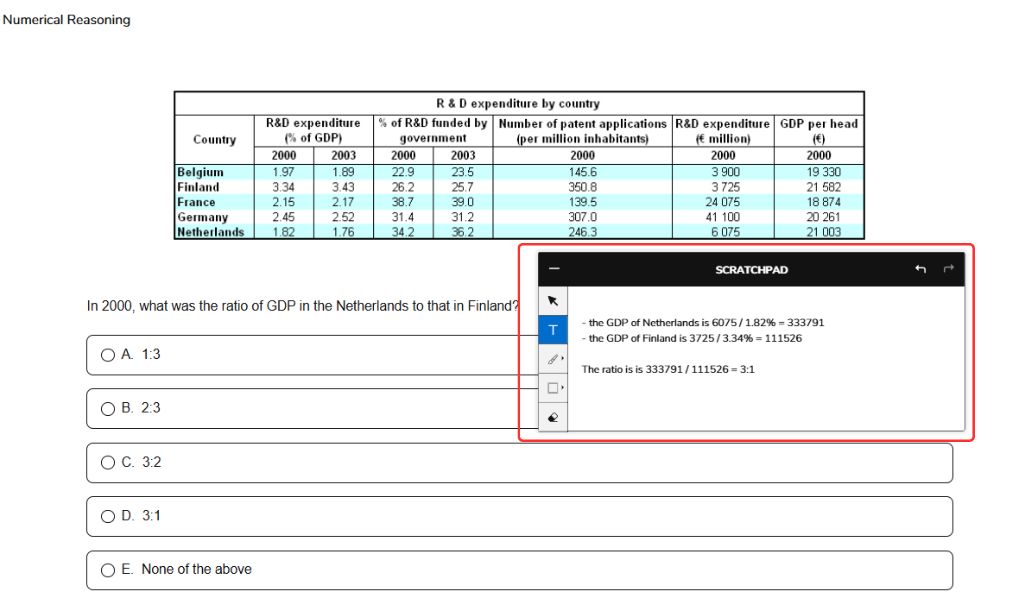
The TAO scratchpad is mainly there for numerical reasoning, where you might need to park an intermediate result or keep track of a multi-step calculation. That said, it can easily become a time sink, so the best default is: use it only when you truly must.
What it’s good for
- Jotting down intermediate results in numerical reasoning
- Keeping track of a short chain of steps when mental maths isn’t realistic
The catch: it costs time
- Opening it, placing text, and switching tools adds friction
- For many NR questions, you’re better off using efficient percentage methods and minimising scratchpad use
What tools are available
The scratchpad includes basic “mini whiteboard” features like a pointer, text box, drawing freehand or set box shape, and an eraser.
The only one worth using is the text tool to type your maths formulas and notes. The other features like freehand drawing and the eraser are not really useful for anything.
Practical rule
Use the scratchpad as a backup, not a habit.
If you find yourself “decorating” the scratchpad, you’re donating seconds to the clock.
ACCESSIBILITY SETTINGS: DISPLAY OPTIONS FOR VISUAL COMFORT
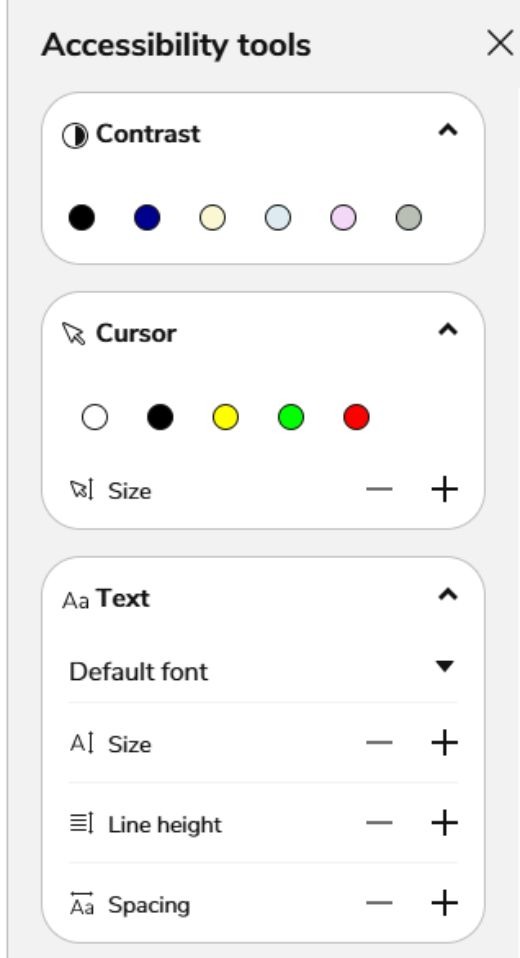 The TAO platform includes accessibility-style display settings that let candidates adjust how the interface looks.
For many people, that’s simply a comfort upgrade. For candidates with visual impairments or other functional needs, it can make the difference between “doable” and “draining”.
What these settings can help with
- Reducing eye strain during long, high-intensity reading
- Improving readability in verbal reasoning passages
- Supporting candidates who benefit from clearer contrast and calmer visuals
What you can typically customise
- Colour themes (e.g. darker or higher-contrast display)
- Formatting tweaks that make text easier to track and read
How to make the most of it
- Decide on your preferred setup in advance
- Test it during the mandatory mock exams
- Go into the real test already knowing what to switch on (no fiddling, no time lost)
The goal is simple: set up the screen so you can focus on the questions, not fight the interface.
Nice-to-have tools on the EPSO tests TAO platform
LINE READER: A FOCUS AID
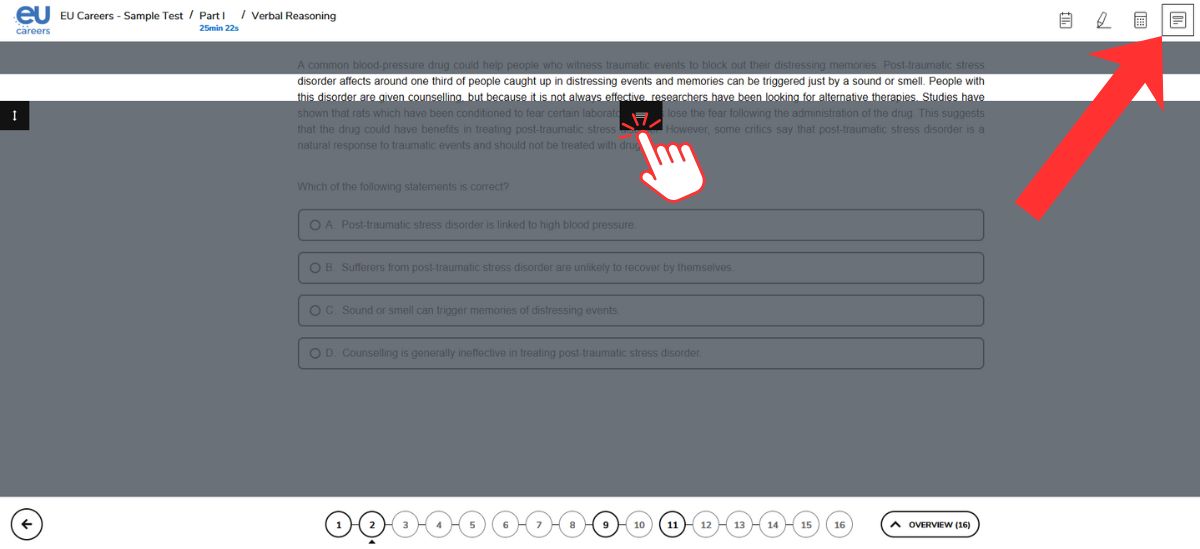
The line reader is a visual focus aid for the verbal reasoning test. It masks surrounding text so you can track one line at a time, which can stop your eyes from skating across dense paragraphs.
What it’s good for
- Keeping your place in long passages
- Reducing “where was I?” rereads
- Lowering mental fatigue when the text gets heavy
What it’s not
- A magic speed button
- A must-use tool for everyone
Recommendation: This is totally based on your personal preference. I say try it in practice, keep it if it helps, drop it if it feels fiddly.
HIGHLIGHTER TOOL: WHEN IT HELPS (AND WHEN IT’S A TIME TRAP)
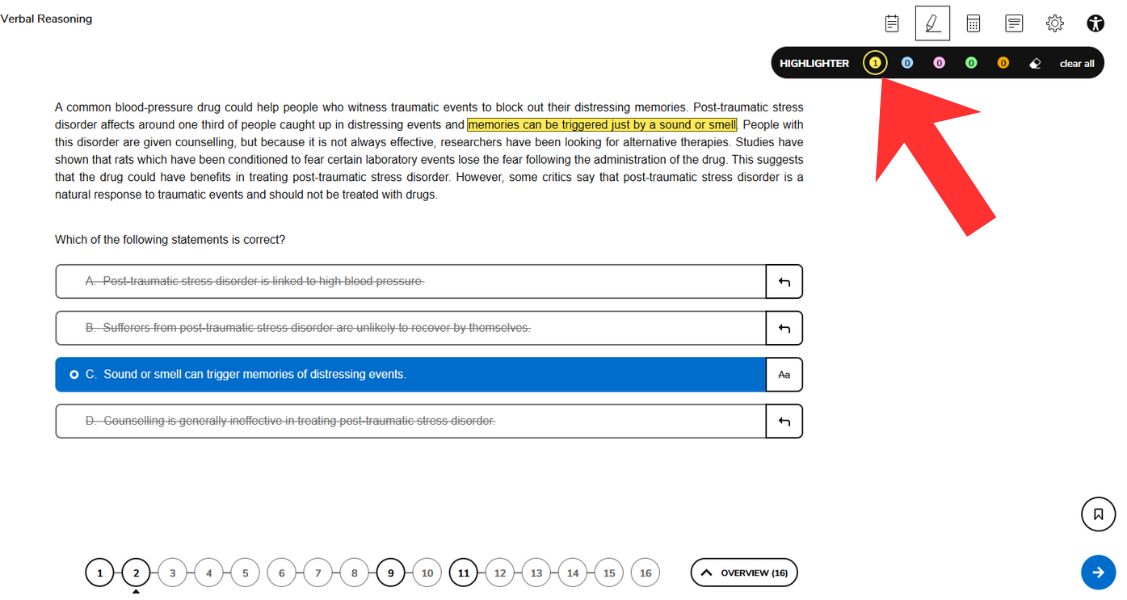
The highlighter is highly personal: some candidates genuinely read faster and feel more in control when they can mark key details as they go. If you’re one of them, it can be worth testing - just be careful it doesn’t turn into a time drain.
What it’s designed to do
- Mark key parts of a passage so you can find them faster later
- Visually separate different types of information using multiple colours
- Help you keep track of logic-heavy statements in dense text
When it can actually be useful
Use it selectively, not as a habit:
- When you plan to bookmark and return to a question later
- When a single phrase is the “make-or-break” detail (a date, a name, a condition)
- When the passage contains logic words that change everything, such as:
- all, some, most, none
Why it often backfires
- It takes extra actions to highlight, and those seconds add up fast
- It tempts people into highlighting too much, which becomes noise rather than help while the seconds keep ticking away.
What happens to your highlights
Highlights stay visible on the platform, so you can revisit what you marked later
Recommendation: My personal opinion is - don’t use it. Make an exception only when it clearly saves you a reread, and keep it to one or two highlights max per question.
That being said, some of my students really like using it and feel it is beneficial. Therefore, try it out during the mock exam, and see if it is something that works for you.
Conclusion
The TAO platform isn’t trying to impress anyone: it’s built to get you through timed reasoning tests with minimal fuss. The real advantage comes from knowing the interface in advance: how the question navigation works, where the essential tools are (especially answer elimination), and which “nice-to-haves” can quietly steal seconds when the clock is already tight.
Before you start serious practice, take this article as your quick orientation lap:
- Use the tools that save time (answer elimination, calculator)
- Use the others sparingly (scratchpad, highlighter, focus aids)
- Sort out your display settings early so you’re not fiddling during the test
Next up in Part 2, we’ll switch to the other half of the TAO experience: what candidates can expect in the Written Test/EUFTE environment, and how to avoid losing time to the platform when you should be writing.